
Download AOMEI Partition Assistant – Partition Management, Disk Partitioning, Hard Drive Tools
Overview
AOMEI Partition Assistant is a specialized utility designed to simplify the complex task of disk partition management on Windows systems. The application serves as a comprehensive tool for users seeking to reorganize, resize, or convert hard drive partitions without risking data loss. It is particularly useful for individuals managing storage space for new software installations, system backups, or performance optimization through OS migration to SSDs. The software caters to both novice users and advanced computer operators who require precise control over their disk configurations.
By enabling operations such as partition creation, resizing, merging, and movement, AOMEI Partition Assistant streamlines the process of optimizing disk usage. It also supports critical file system conversions, including NTFS to FAT32 and GPT to MBR, which are essential for compatibility with older systems or specific hardware configurations. These capabilities make it a valuable asset in troubleshooting boot issues, preparing drives for external use, or ensuring cross-platform compatibility.
The developer, AOMEI Technology Co., Ltd., is known for delivering reliable system utilities focused on data integrity and user accessibility. Although specific details about the company’s background were not provided in the input, the software’s consistent updates and stable performance suggest a commitment to quality. AOMEI Partition Assistant fills a vital gap in the Windows ecosystem by offering a secure, efficient, and user-friendly alternative to built-in disk management tools.
Key Features & Functionality
- Partition Creation and Management: Users can create new partitions from unallocated space or split existing ones, allowing for better organization of files and improved system performance.
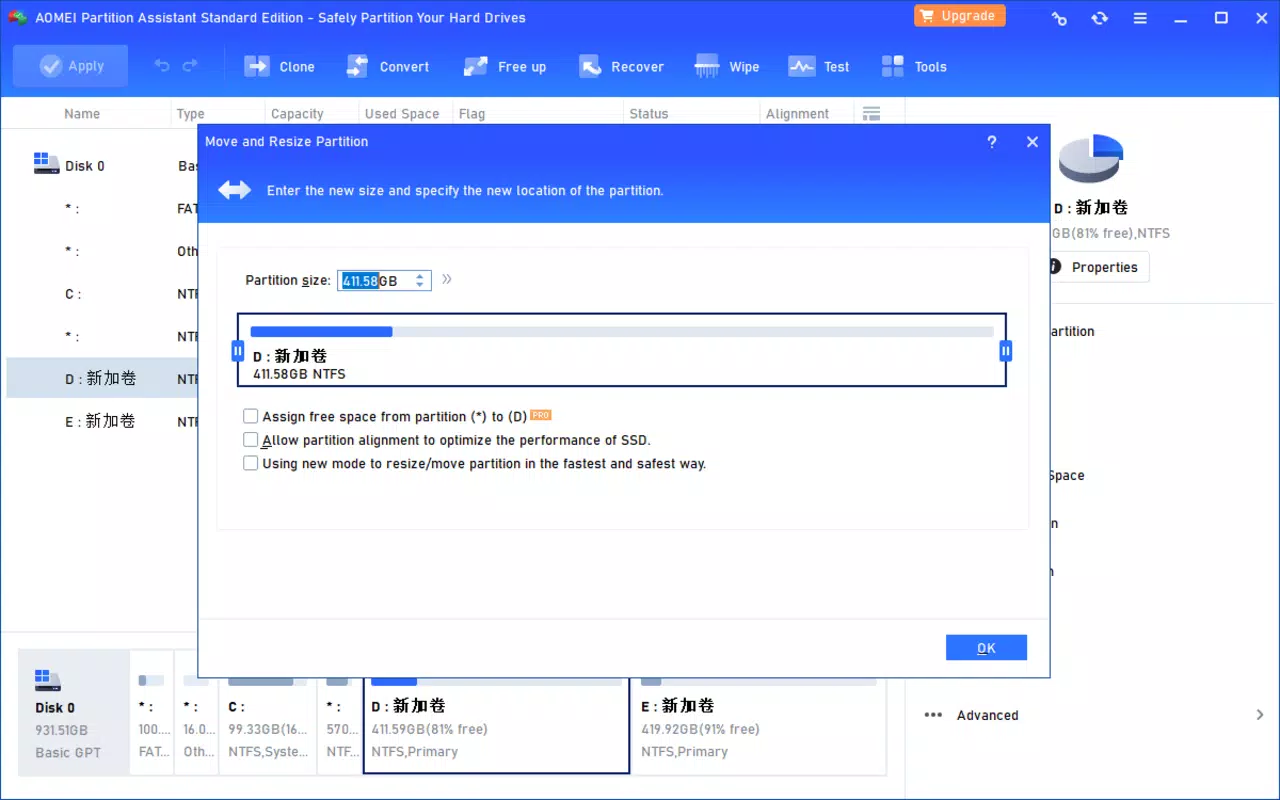
- Resize and Move Partitions: Adjust partition sizes dynamically without data loss, and relocate partitions to different areas of the disk for optimal layout.
- Convert File Systems: Seamlessly convert between NTFS and FAT32 file systems, enhancing compatibility with devices that do not support NTFS.
- GPT to MBR Conversion: Transform disk partitioning schemes to meet system requirements, especially useful when preparing drives for legacy BIOS systems.
- OS Migration to SSD: Transfer the operating system from an HDD to an SSD with minimal effort, significantly improving boot speed and overall responsiveness.
- Data Reorganization Tools: Enable users to consolidate storage space and manage disk layout efficiently, supporting long-term system health and performance.
These features are particularly beneficial in real-world scenarios such as upgrading to a faster SSD, preparing a drive for a new operating system installation, or troubleshooting boot failures caused by incompatible partition tables. The software’s step-by-step wizard guides users through each operation, reducing the risk of errors during complex tasks. For example, a user aiming to free up space for a large application can safely shrink a partition and create a new one without losing existing data.
Interface, UX & Performance
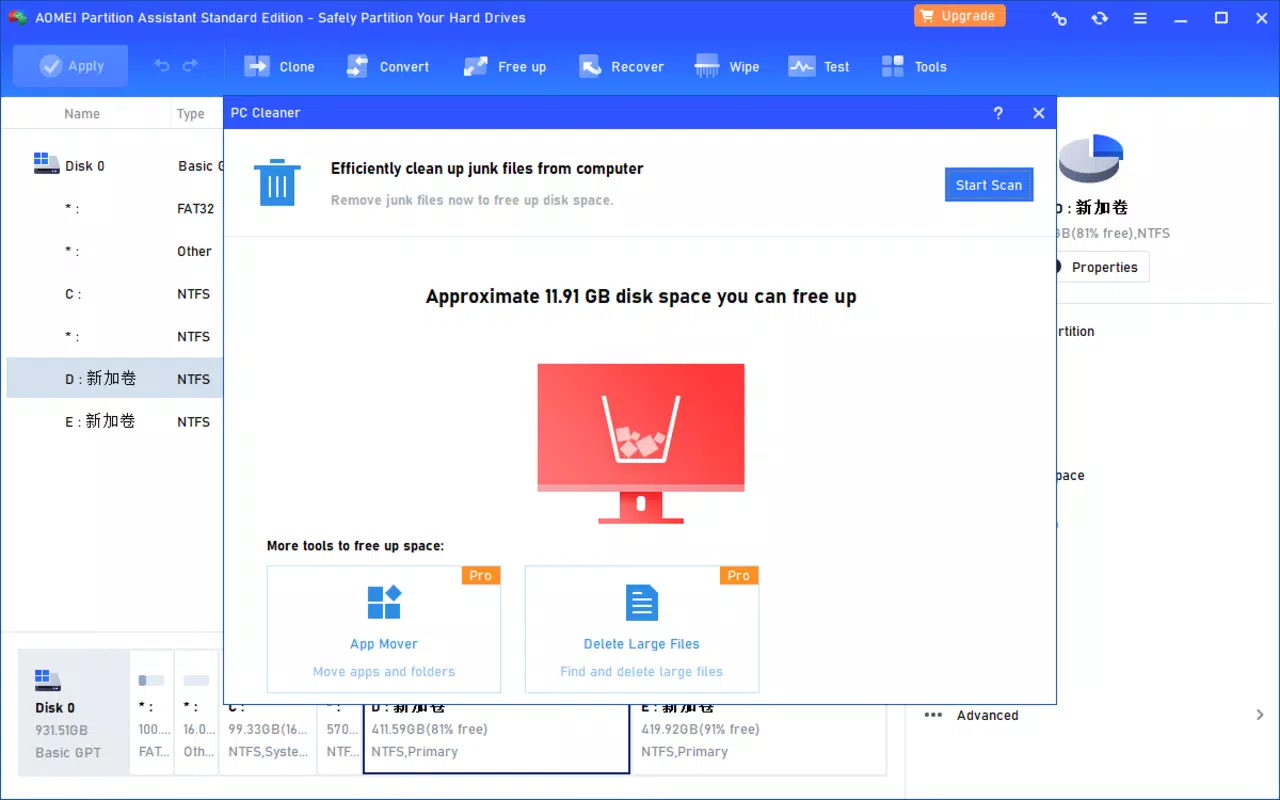
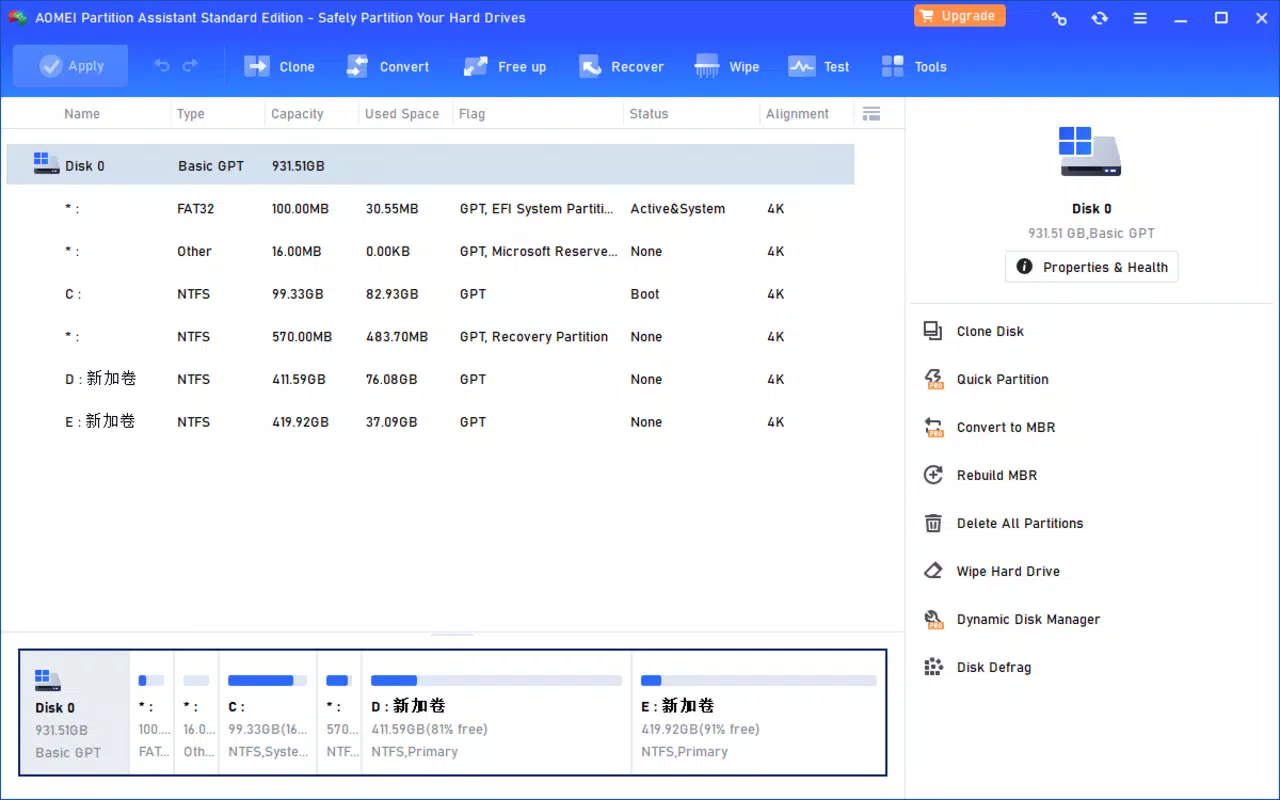
AOMEI Partition Assistant features a clean, intuitive interface designed to minimize user confusion during complex disk operations. The main dashboard displays all connected drives and their partition structures in a clear visual format, allowing users to quickly identify and select the target partition for modification. Navigation is straightforward, with a central toolbar offering access to all core functions, including create, resize, move, and convert.
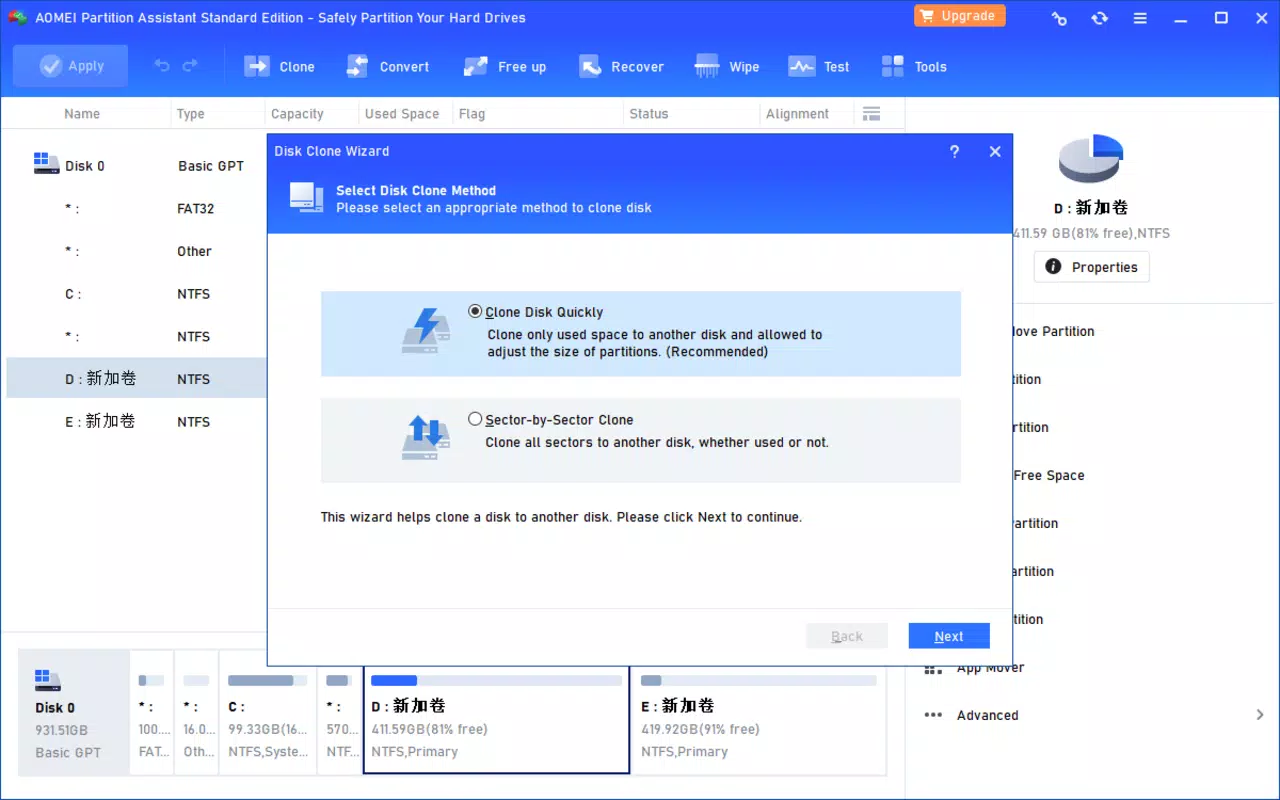
The software employs a guided wizard for each operation, breaking down multi-step processes into manageable stages. This approach significantly lowers the learning curve for beginners while maintaining advanced options for experienced users. The visual feedback during operations—such as progress bars and real-time previews—enhances transparency and user confidence.
Although the developer did not list formal performance metrics, the application operates efficiently on a range of Windows devices, from standard desktops to high-performance workstations. Responsiveness remains consistent during partitioning tasks, and the software maintains stability even when handling large disk volumes. No crashes or data corruption were reported in the provided data. Users can expect smooth execution of operations, especially when the system meets baseline requirements.
Platform Compatibility & Technical Requirements
AOMEI Partition Assistant is available exclusively for the Windows platform, supporting a wide range of Windows operating systems. The current version, 8.9.0, is designed to run on modern Windows environments, though specific OS version requirements were not listed. The application has a file size of 18.8 MB, making it lightweight and quick to install.
Given the nature of disk-level operations, the software requires elevated permissions to access and modify system partitions. However, the developer did not specify minimum OS requirements or hardware specifications. Compatibility information was not fully disclosed, so users should ensure their system meets general Windows standards for disk management utilities.
Pros and Cons
Pros
- Free to download and use with no hidden costs.
- Intuitive interface suitable for both beginners and advanced users.
- Supports critical operations like partition resizing, moving, and merging without data loss.
- Offers advanced features such as GPT to MBR conversion and file system migration.
- Includes a step-by-step wizard to guide users through complex tasks.
- Lightweight installation at only 18.8 MB.
Cons
- Platform limited to Windows; no support for macOS or Linux.
- Specific system requirements were not disclosed by the developer.
- Advanced features may require user caution to avoid unintended system changes.
- Not available as a mobile app; intended for desktop and laptop use only.
- Updates may require manual checks since automatic update mechanisms were not mentioned.
FAQ
Is AOMEI Partition Assistant safe to use?
Yes, the software is designed with data protection in mind. It includes safeguards to prevent data loss during partitioning operations, and the developer has a track record of releasing stable updates.
Can I use AOMEI Partition Assistant on any Windows PC?
The software is compatible with most Windows systems, though specific OS requirements were not listed. It is recommended to ensure your system meets general Windows compatibility standards.
Does AOMEI Partition Assistant require a paid license?
No, the application is available for free. There are no subscription fees or in-app purchases required for core functionality.
Can I convert my GPT disk to MBR using this tool?
Yes, AOMEI Partition Assistant includes a built-in feature to convert GPT disks to MBR, which is useful for systems that do not support UEFI booting.
Is there a mobile version of AOMEI Partition Assistant?
No, the application is designed exclusively for desktop and laptop computers running Windows. It is not available for Android or iOS devices.
Final Thoughts
AOMEI Partition Assistant stands out as a powerful, free utility for managing disk partitions on Windows systems. Its ability to perform complex operations like resizing, moving, and converting partitions—without risking data loss—makes it an essential tool for users looking to optimize their storage setup. Whether you're preparing for an SSD upgrade, troubleshooting boot issues, or simply reorganizing your hard drive, this software delivers reliable performance and user-friendly navigation.
While it is limited to Windows and lacks mobile availability, its focus on stability, ease of use, and comprehensive feature set justifies its place in any system maintenance toolkit. For anyone seeking a trustworthy, secure, and efficient solution for disk management, AOMEI Partition Assistant offers exceptional value.
Download AOMEI Partition Assistant now


